💾 Downloading
Download tasks work through InnerTube API. They save videos, audio, subtitles, and thumbnails to Downloads or to a custom folder specified on the Advanced tab.
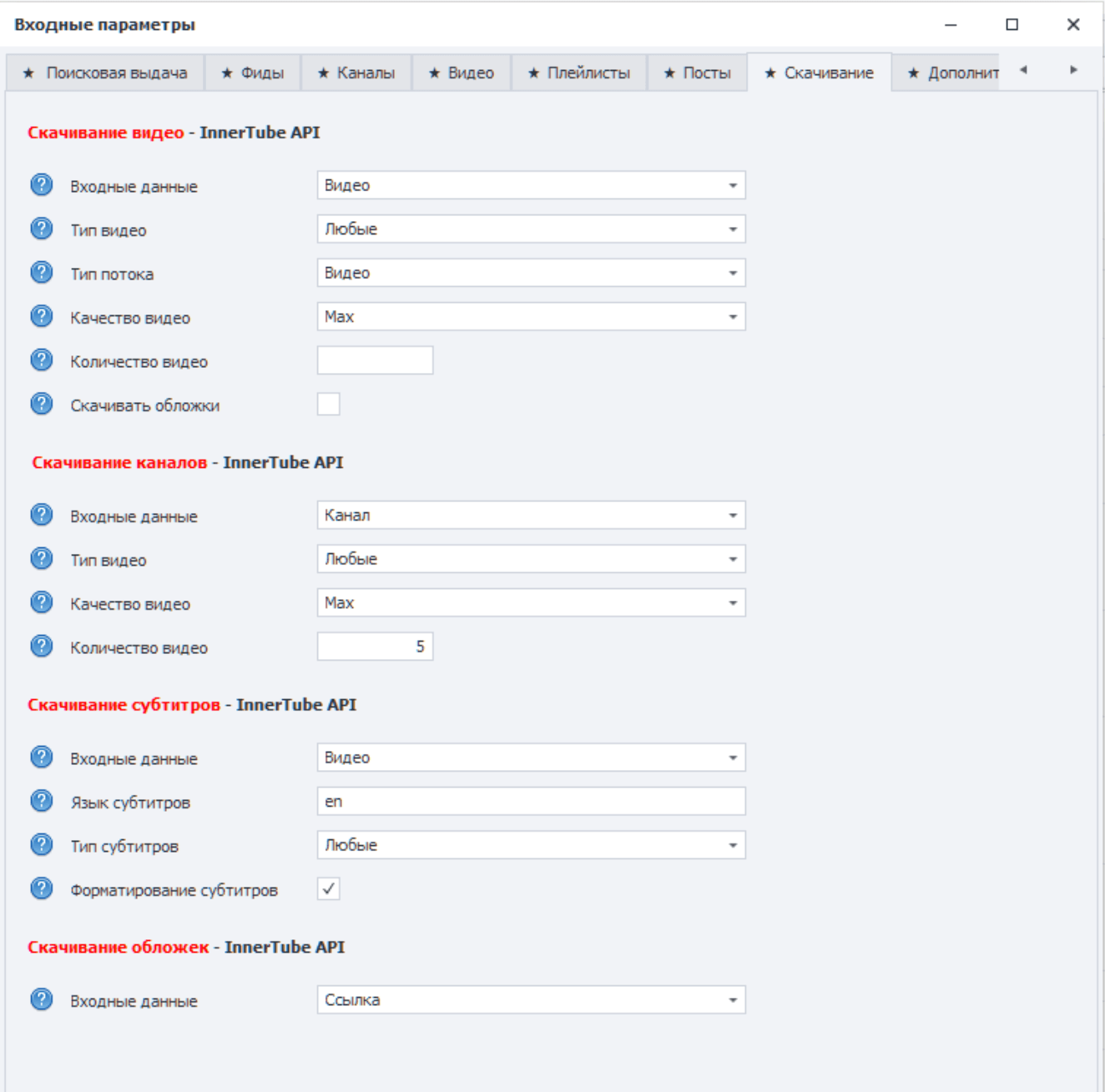
🎬 Video Downloading
Input data:
- Video — URLs from
3_Videos_Urls.txt. - Playlist — URLs from
4_Playlists_Urls.txt. - Channel — URLs from
2_Channels_Urls.txt.
Parameters:
- Video type — any, videos, live broadcasts, or Shorts. Applies when Channel is selected as the input data.
- Stream type — video with audio or audio only.
- Video quality — 360p, 720p, 1080p, 1440p, 2160p, 360p Muxed, 720p Muxed, or Max.
- Video count — limits the download volume.
- Download thumbnails — additionally saves video previews.
360p Muxed and 720p Muxed are downloaded as combined streams and do not require later merging. Quality options without Muxed download video and audio separately and then merge streams through ffmpeg. If the selected quality is not available, the closest previous available quality is used.
📺 Channel Downloading
The task reads channels from 2_Channels_Urls.txt.
Parameters:
- Video type — any, videos, live broadcasts, or Shorts.
- Video quality — from 360p to Max, including Muxed options.
- Video count — how many videos to download from one channel.
This mode is convenient when you need to download several latest materials from each channel in the list.
📝 Subtitle Downloading
Input data:
- Video — URLs from
3_Videos_Urls.txt. - Channel — URLs from
2_Channels_Urls.txt.
Parameters:
- Subtitle language — two-letter ISO 639-1 code, for example
ruoren. The field cannot be empty. - Subtitle type — any, uploaded by author, or auto-generated.
- Subtitle formatting — saves subtitles as plain text.
If a video does not have subtitles in the selected language, it is skipped.
🖼️ Thumbnail Downloading
The task uses 6_Thumbnails_Urls.txt. The file can contain thumbnail URLs or video URLs whose previews should be downloaded.
📊 Download Report
On the Advanced tab, Create report table supports three modes:
- No — no report is created.
- Report — a table with basic video information and paths to downloaded files.
- Scheduler — a table in a format suitable for further uploading through YouTube-Uploader's scheduler.
The Exclude additional information from video names option keeps only the video title in file names.